using azure ai search with ai foundry hosted OpenAI base models
why
In this guide, we’re using an off-the-shelf solution to implement RAG. An introduction to RAG can be found here.
But why use RAG, given that newer LLMs have massive context windows (1 million for Gemini 2.5 Pro and Claude 4 Sonnet)? There are advantages to both approaches. Some of them are covered here. Depending on your use case, this guide might still be useful for you.
background
For this guide/experiment, I’ll be using fake library docs for a fake SDK called BumbleGraph, which I created, so no LLM has been trained on it.
steps
What you’ll need before starting:
- An Azure Subscription
- A deployed Azure OpenAI base model in AI Foundry (tested with GPT-4o / 4.1)
Steps:
1) Go to AI Foundry and click on Data + Indexes. Navigate to the Indexes tab and select Upload Files for Data Source.
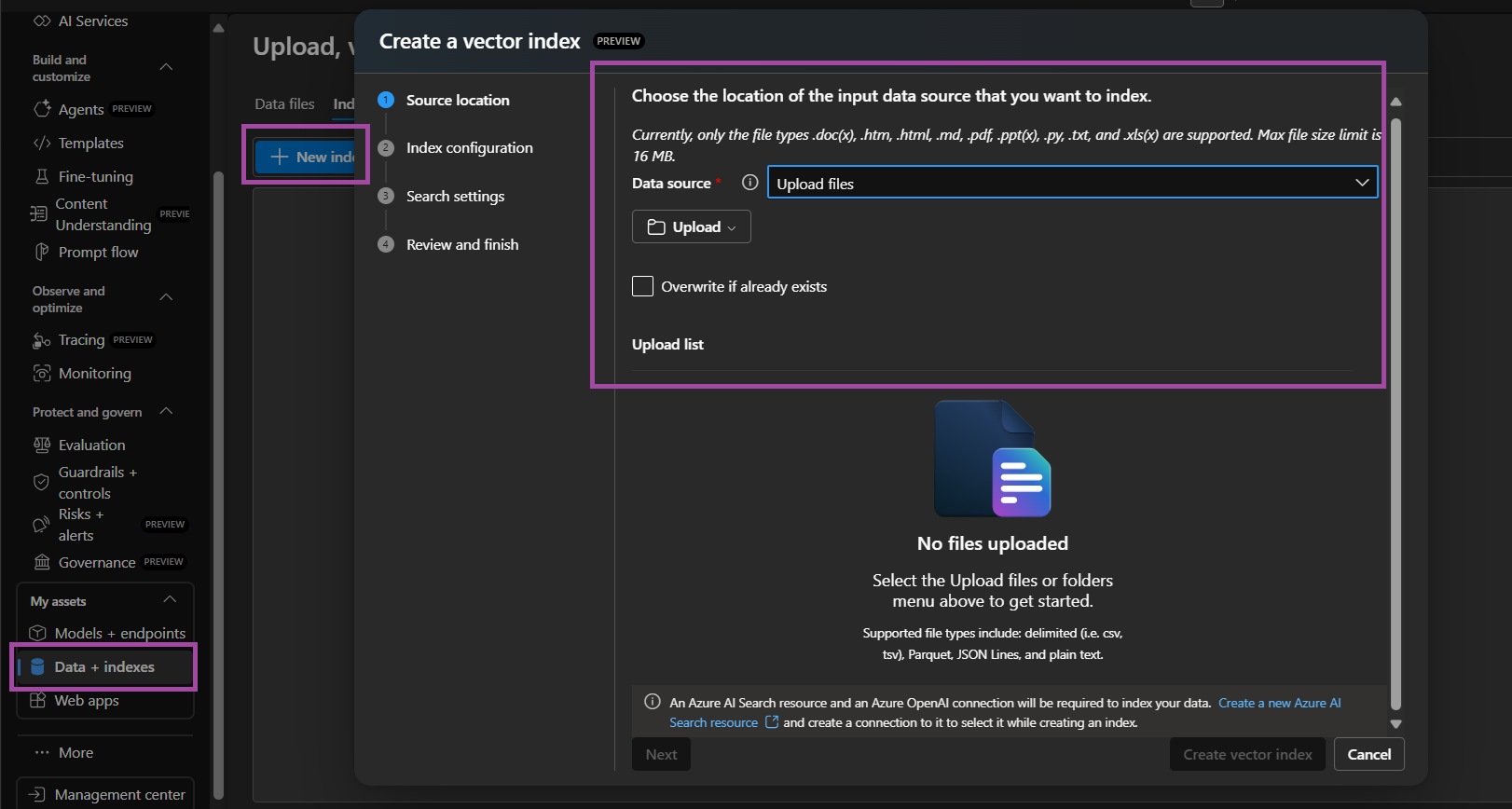
Note: You could also use Azure AI Search as the Data Source directly if you already have a resource and index set up.
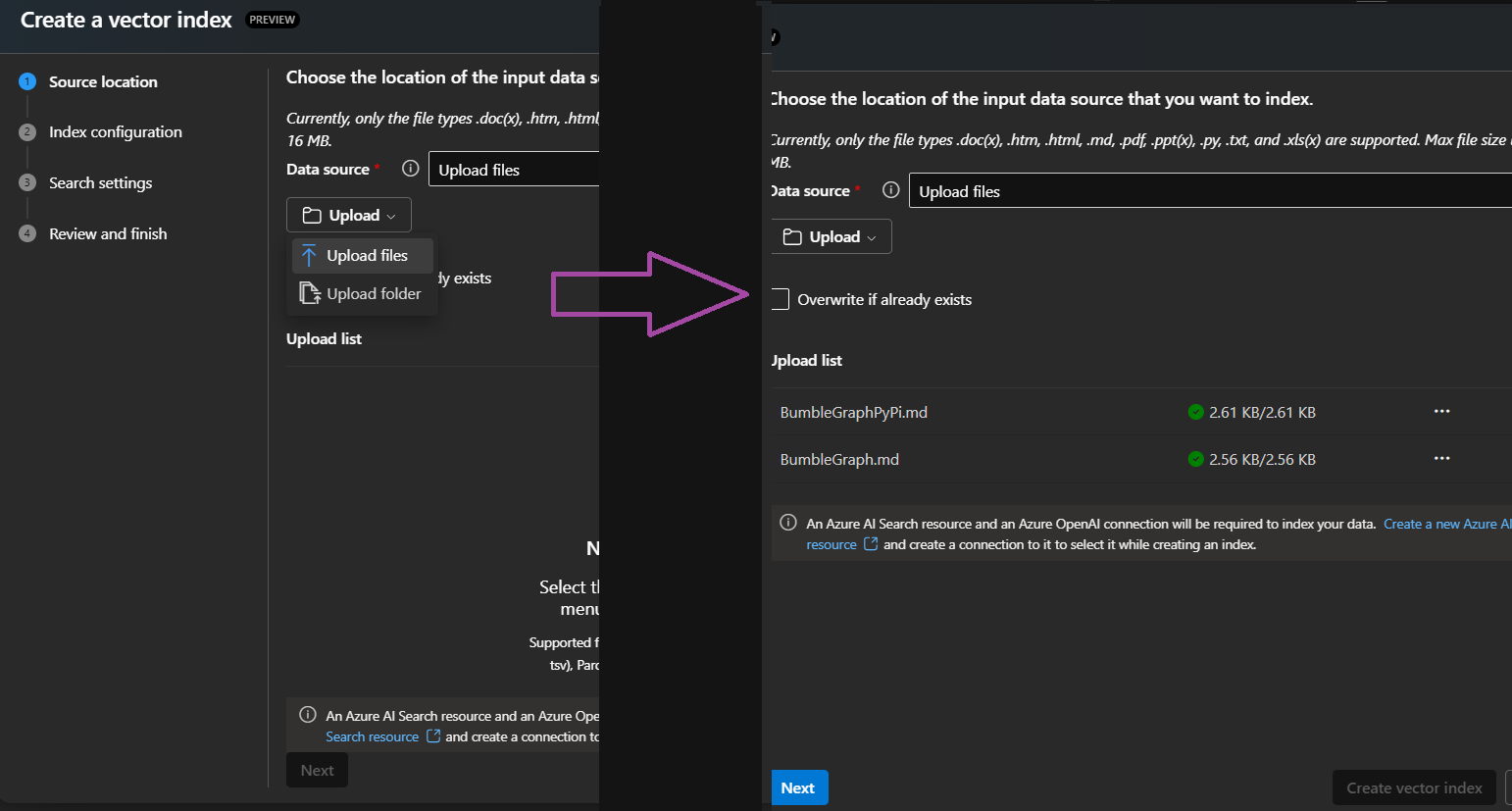
2) Upload your files. It accepts a variety of file types—I’m using markdown here.
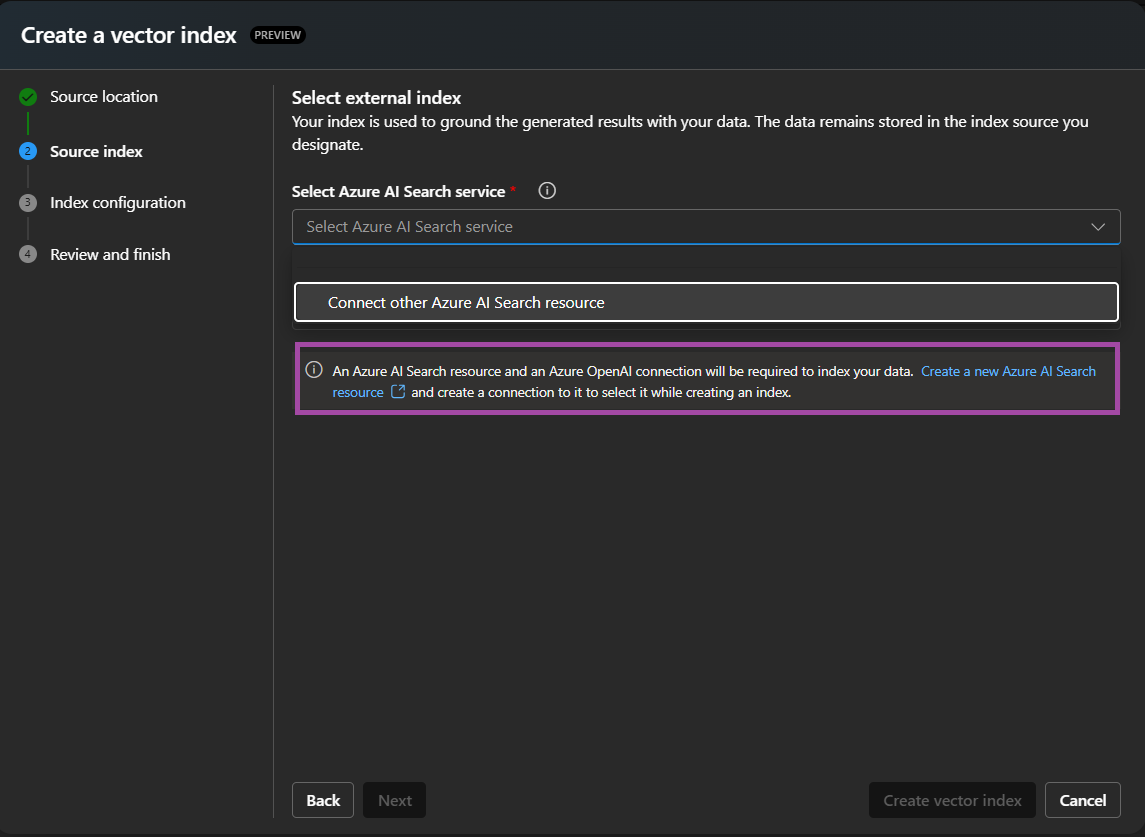
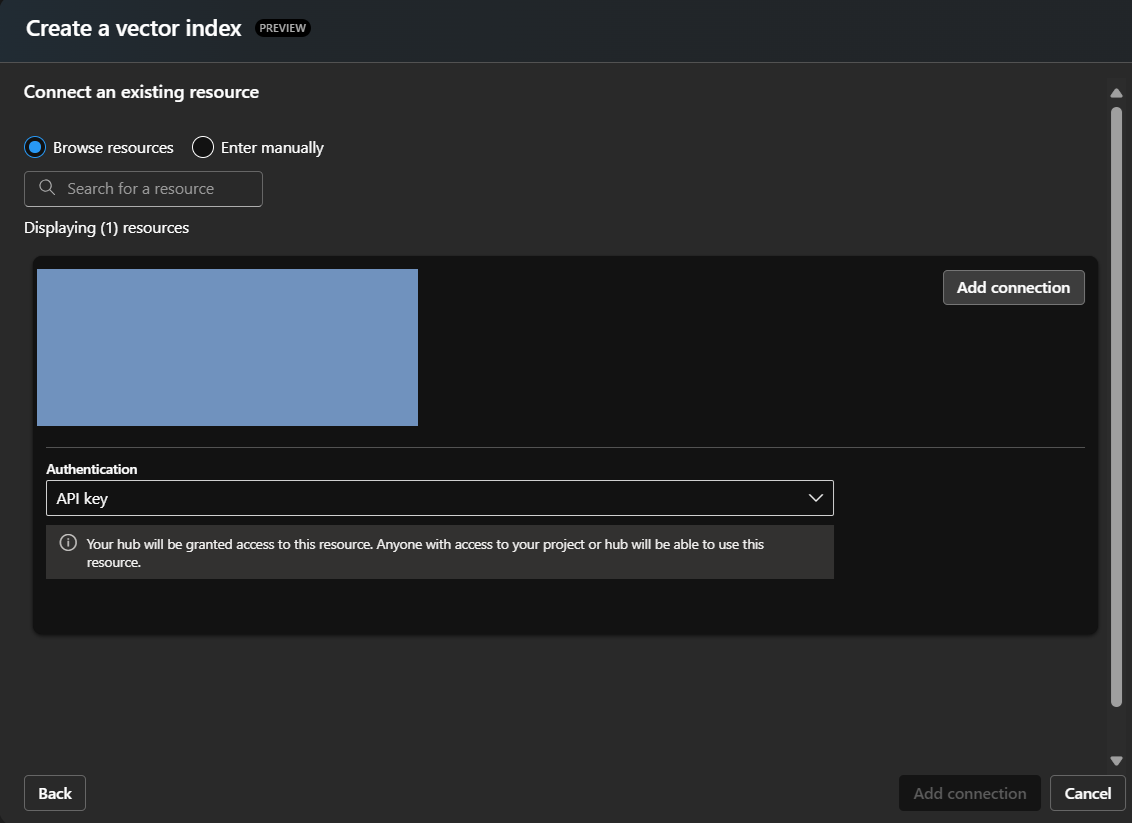
3) In the next step, connect to an existing Azure AI Search resource or create a new one. I created a new one for this demo.
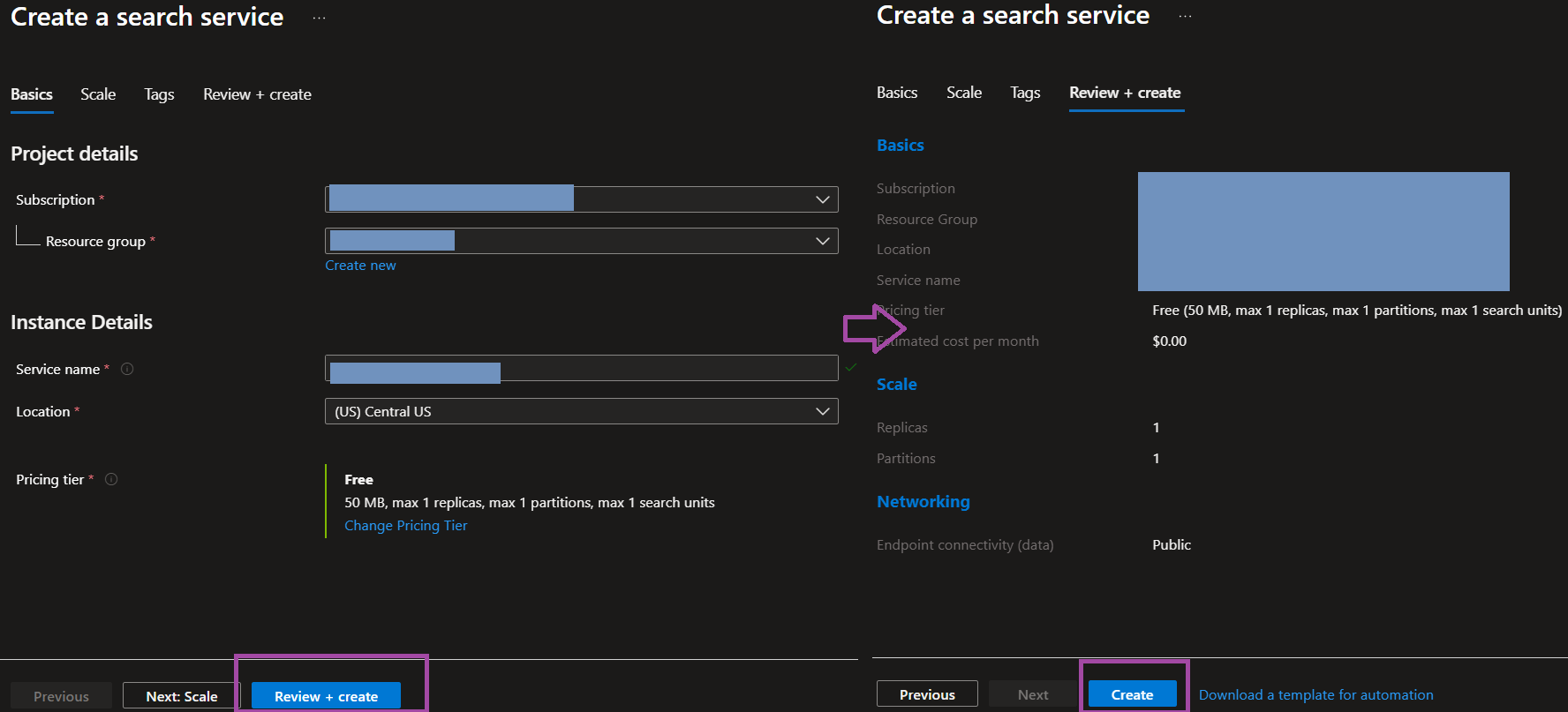
4) If you’re creating a new resource in Step 3, it diverts to an Azure Portal blade. Select the appropriate settings (Resource Group, Subscription, Tier, etc.).
5) Select that resource in AI Foundry and connect to it via API/Entra ID.
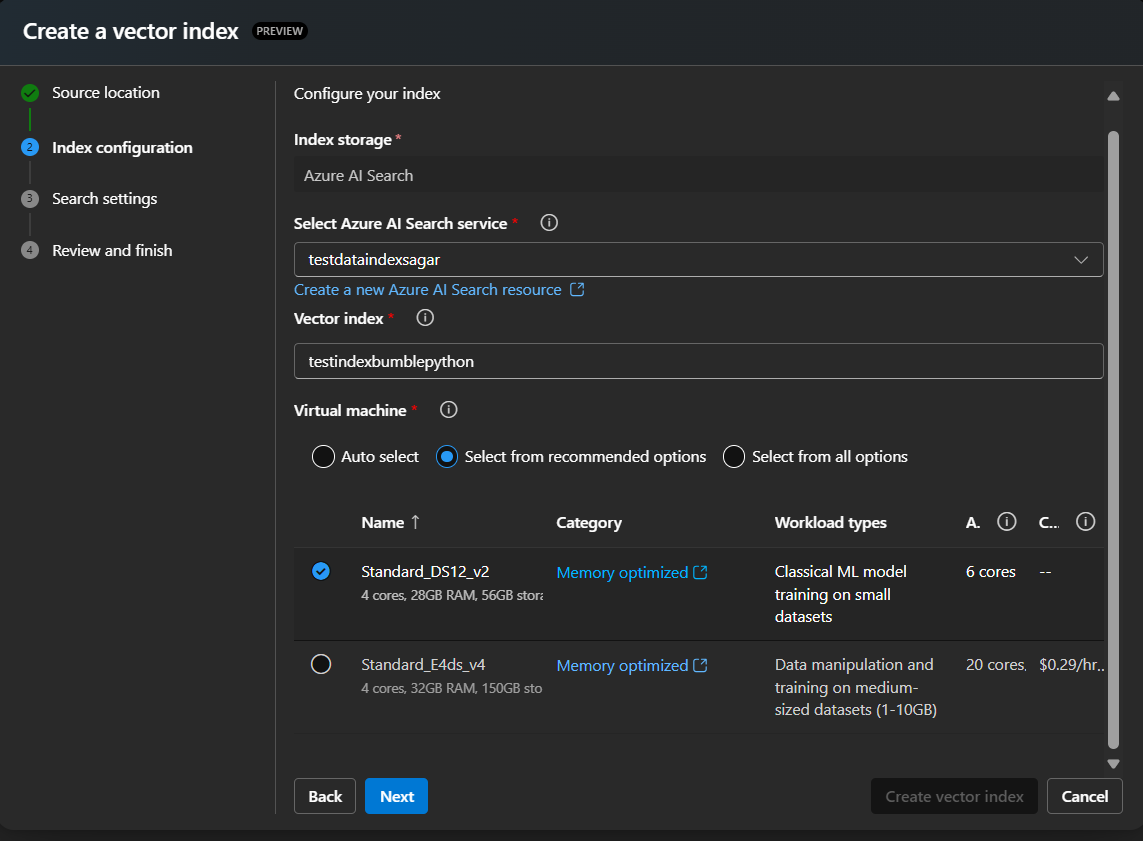
6) Create a search index from the documents you uploaded in Step 2. Choose the appropriate options for VMs used in indexing. The size you select determines how fast indexing completes.
7) Configure search settings. This is where embeddings are created.
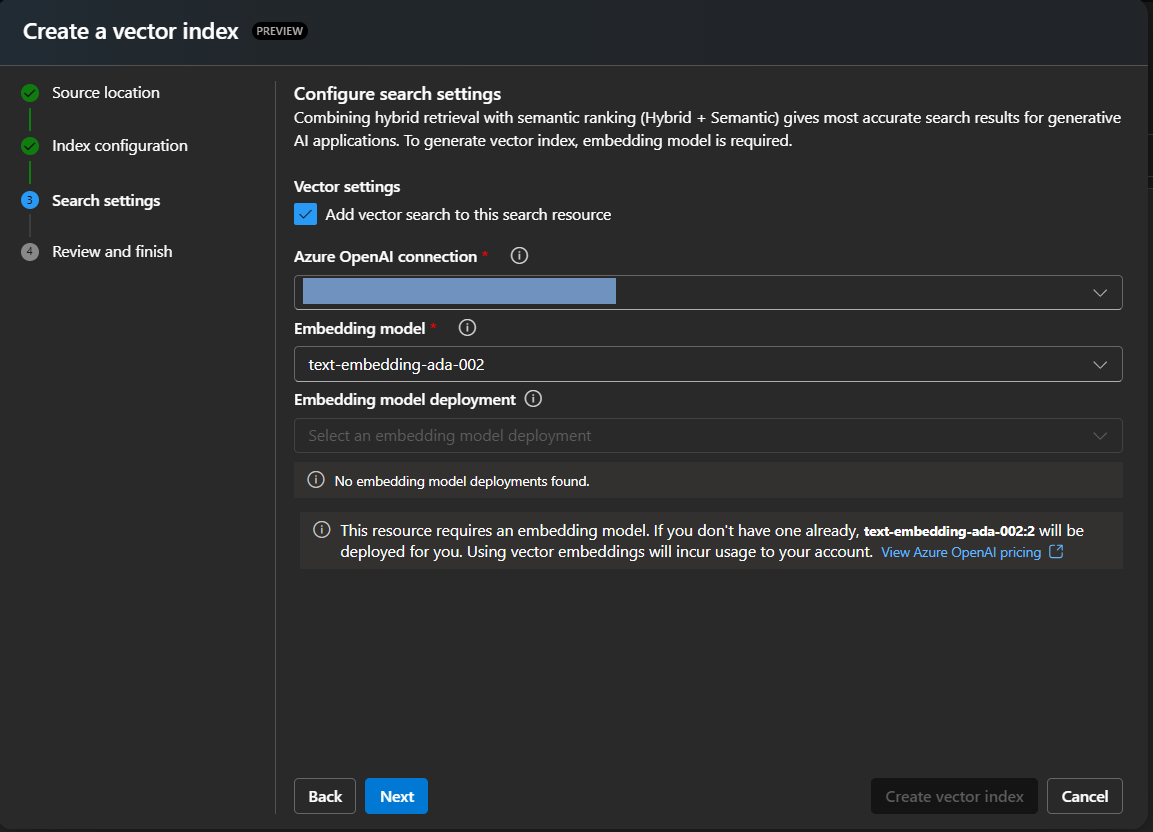
Then click Review and Finish.
After this, VMs are provisioned to chunk/index the uploaded data. You can monitor the status by clicking on the Index.
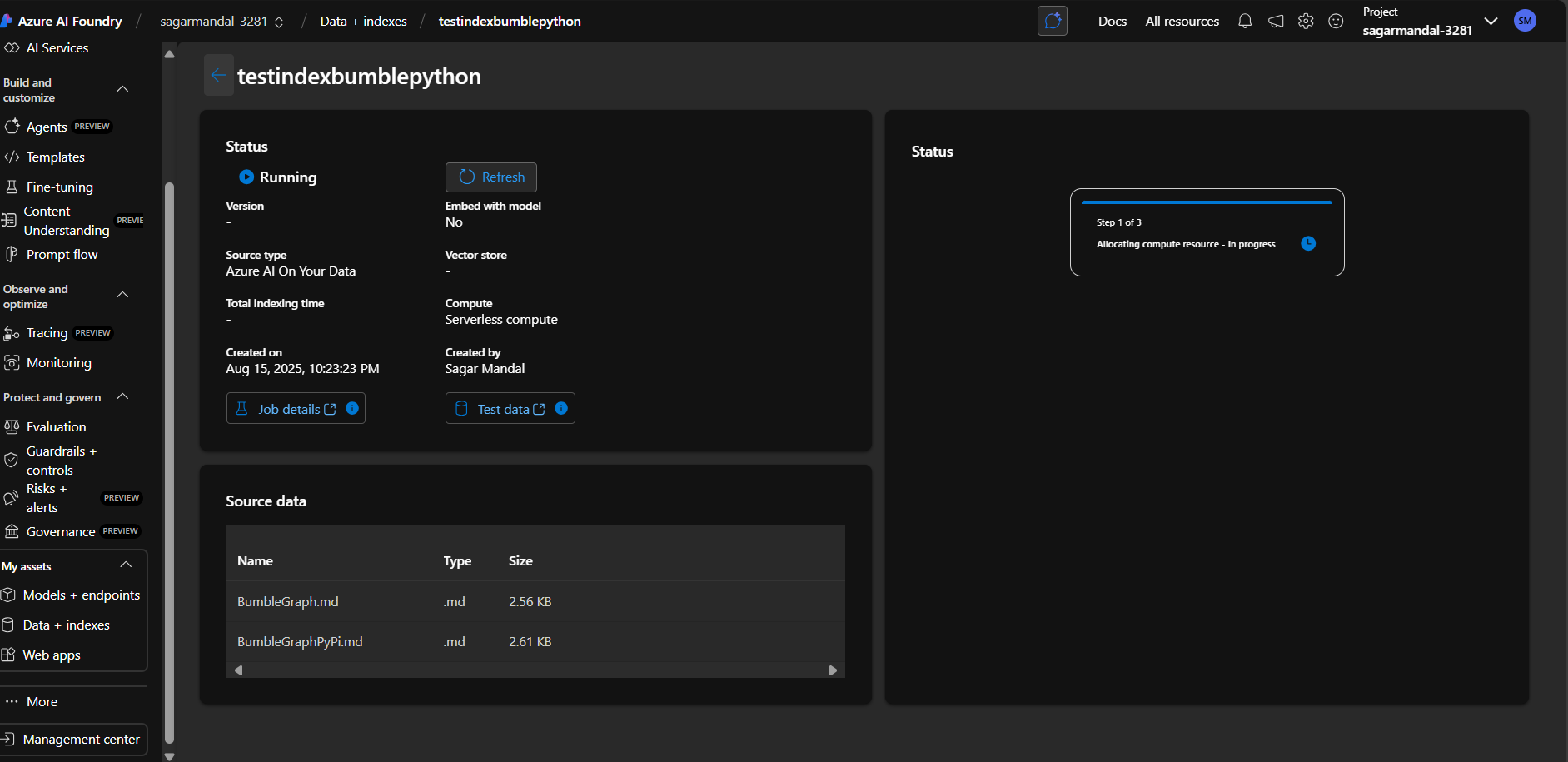
Once indexing is complete, it’s ready to use.
Go to the Model Playground for an Azure OpenAI model to test it out. Add the data source so the base model can query it.
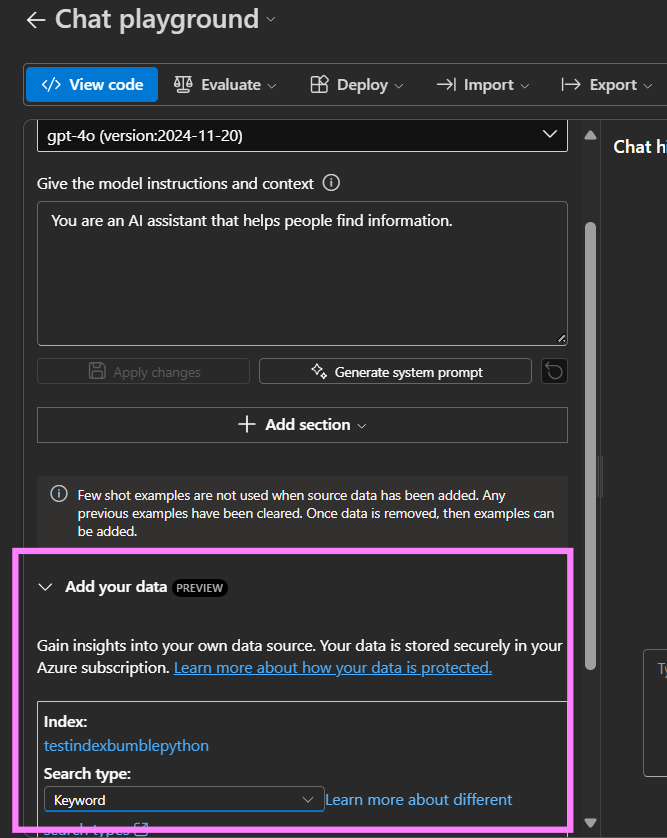
There are different search types available (e.g., keyword vs. semantic). As a rule of thumb, keyword-based search uses less resources, but semantic search is superior for many cases.
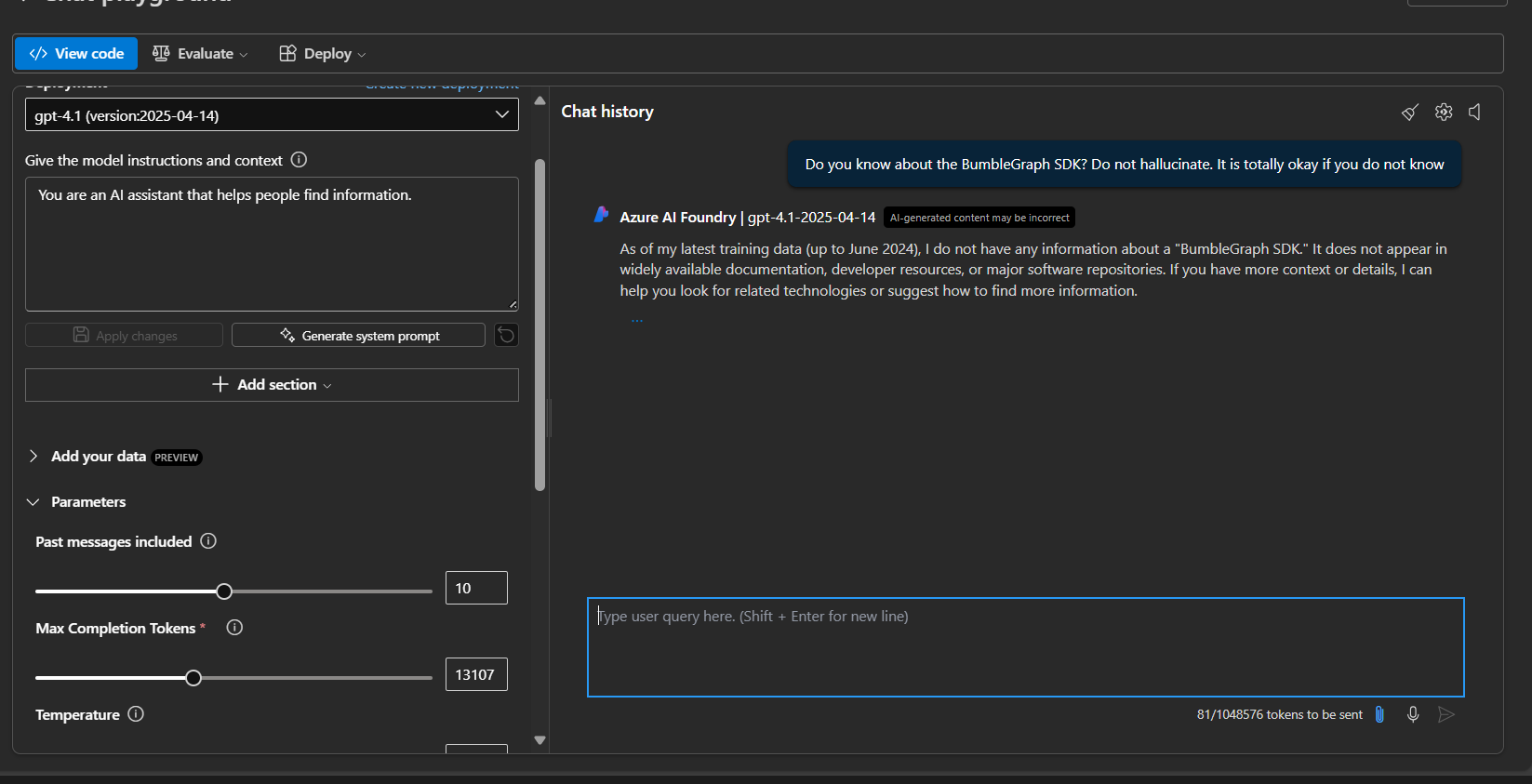
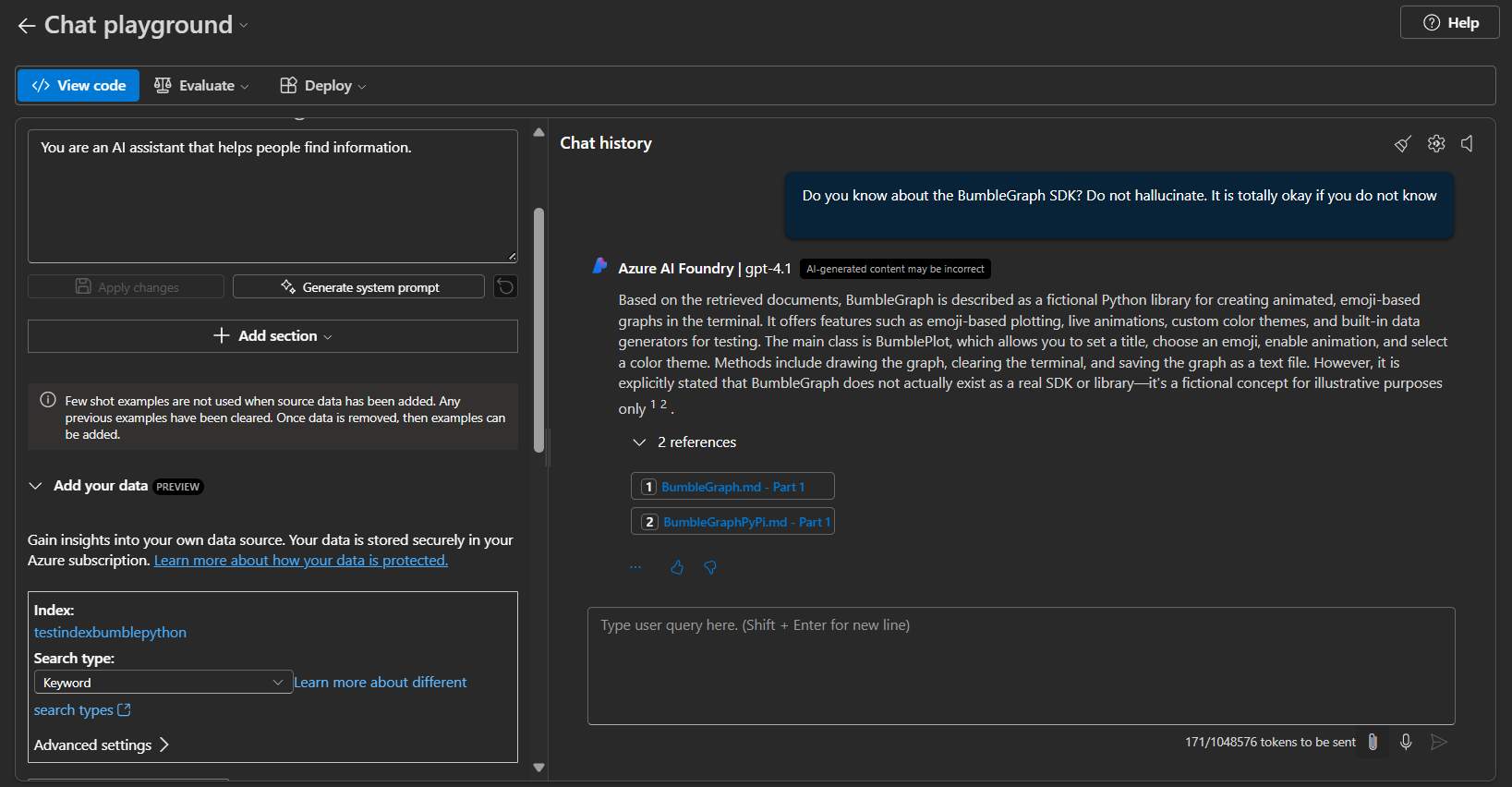
The difference before and after adding the data source can be seen by prompting the model in the playground.
Before the Search Index was added:
After adding the Search Index:
Note: These features are still a work in progress, and newer models may not be fully supported yet (Tested with GPT-4o, 4.1).